A project manager coordinates the work; specialists contribute where a separate role is useful. Start with the smallest team that can produce the first deliverable.
For the role model, read How Clero works. The project manager coordinates and reviews; delegation explains how specialists and peers hand work to each other.
Choose the starting team
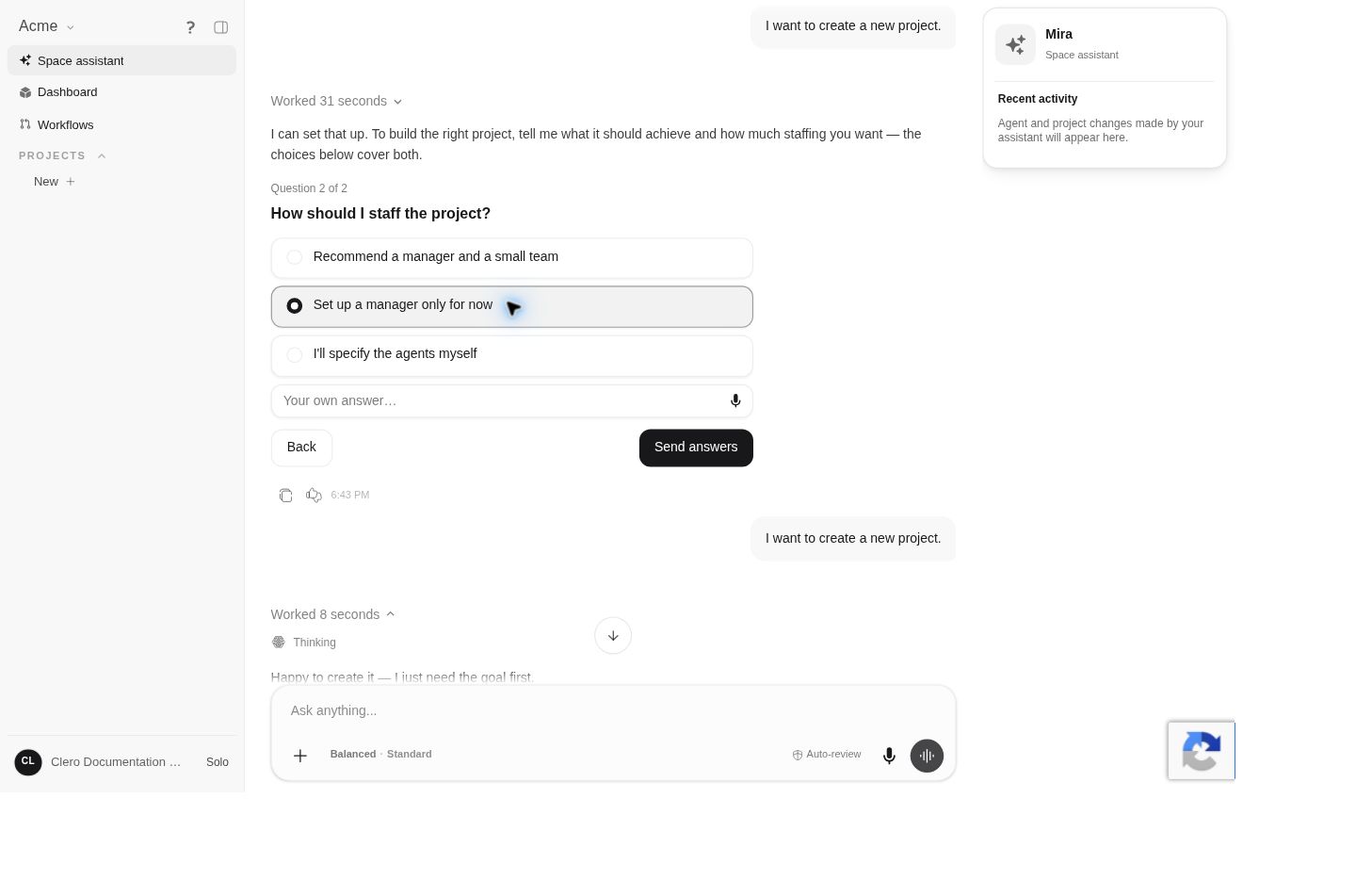
The setup conversation asks How should I staff the project? Choices include a recommended manager and small team, a manager only, your own agent choices, and a custom answer.
The live demo chose manager-only staffing. Mira then proposed Documentation Lead, created the manager and project, and handed over the welcome-checklist task. The space assistant was not assigned as project manager.
Define a useful role
Give an agent a purpose, expected inputs, output, and boundaries. For example:
Research the supplied product sources. Return an evidence brief with links and uncertainties so the writer can prepare an accurate draft. Do not invent missing product facts.
Researcher, writer, and reviewer are example responsibilities, not mandatory agent templates.
Edit the project team
The current source provides this route when your permissions allow it:
- Open the project’s Chats view.
- Open the agent picker and choose Team; its accessible label is Edit team.
- Choose Add agents, search or select the agents, and choose Add to team.
- Use Done to close the team editor.
This editing path is source-backed and was not exercised in the Member demo.
Treat agent settings as shared configuration
The team editor can expose mode, context, and review settings. The source warns that these changes apply to the agent everywhere. They save when changed; Done is not a separate save step for them.
Do not treat these as project-only overrides. Check the agent’s other uses before changing a setting that could affect work elsewhere.
Understand configuration access
The live Member account could use the manager for the bounded project task. Direct Agent settings administration showed No Access. A compact manager-settings dialog showed tabs but displayed Agent unavailable in the content area.
Those are access or loading observations for the inspected surfaces, not proof that the agent was deleted or that all agent management is admin-only. Current source distinguishes organization, team, space, and personal agent scopes. See Roles and access.
Authorized configuration surfaces include instructions, personality, tools, skills, knowledge, and runtime choices, but the full-page editor and compact dialog are not identical. Use the controls displayed in the surface you opened rather than expecting every tab name to match.
Keep handoffs inspectable
Ask each contribution to include the deliverable, evidence, unresolved questions, and the next expected step. Review the actual output before accepting a completion summary.
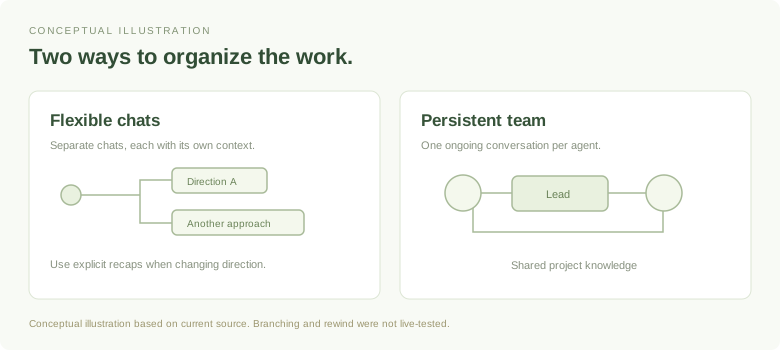
For source selection, see Agent knowledge. For the conversation behavior of a team, see Chats, branches, and rewind.