Your sign-in account, organization role, space, and project describe different parts of the workspace. Check all four when work or settings appear to be missing.
Account and organization
Your account is the identity used to sign in. The organization associates people with roles and account-level administration. Organization membership is not the same as belonging to a project’s AI-agent team.
See Roles and access for the distinction between Member, Admin, and Champion controls. An administrator does not necessarily have every billing or organization-setting permission.
Open another space
The current sidebar and source define this flow:
- Select the current space name at the top of the sidebar.
- Review the Spaces menu.
- Select the space you intend to work in.
- Confirm the selected space before opening or creating a project.
The menu can also show Create Space and Space settings when allowed. Do not assume a missing control is a loading problem; it may depend on your access.
Inspect space settings
The live demo opened Space Settings → General and Access. General contains the name, description, and Save Changes. The source also defines a Danger zone.
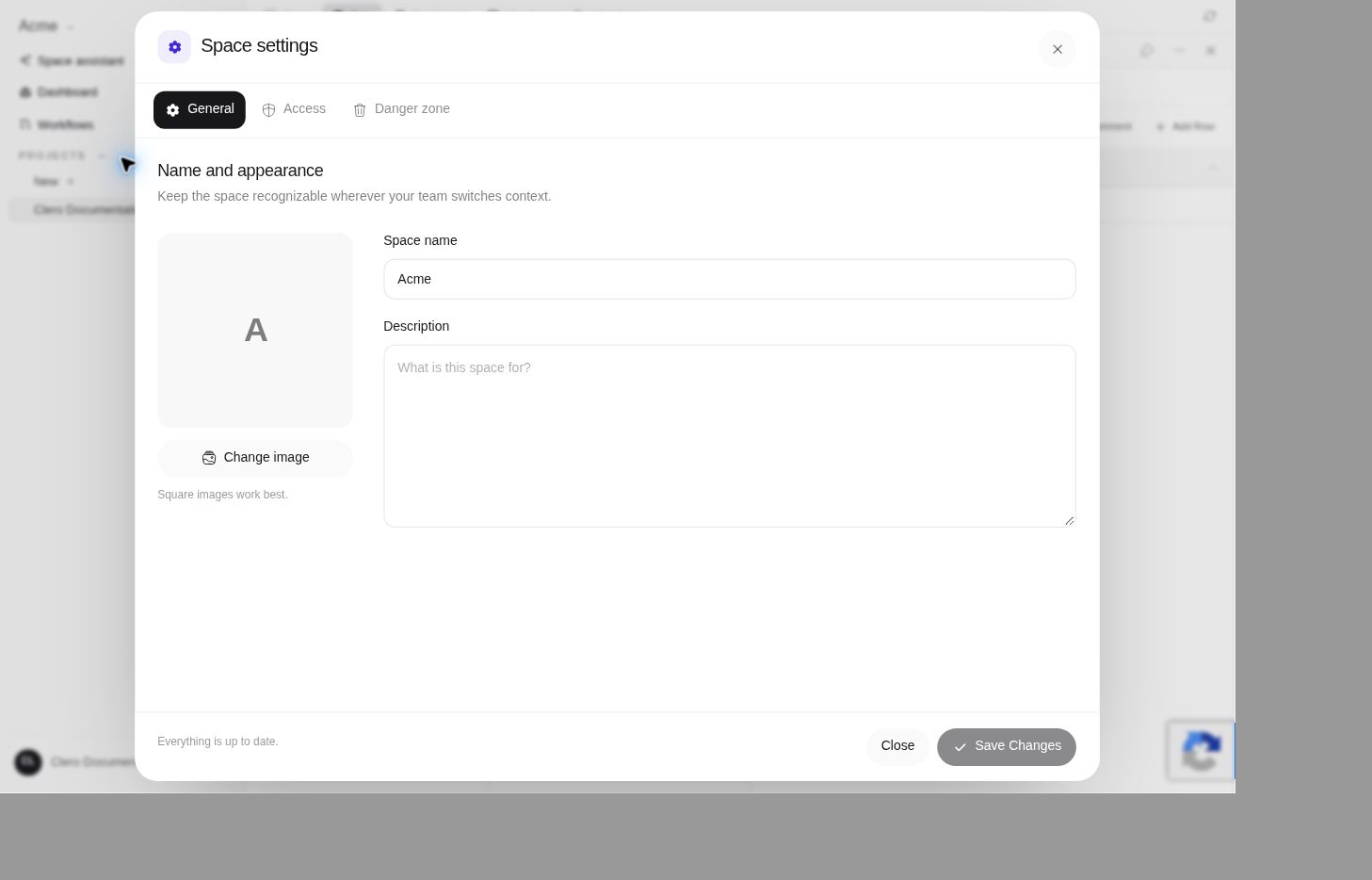 Screenshot detailThe settings were inspected without changing them.Enlarge ↗
Access settings affect who can read or write in the space. Some choices save immediately. Review the audience and the displayed effect before changing them; a broader space scope can expose existing work to more people.
Projects live within a work context
Choose a space, then create or open a project. A project keeps the work around a goal, with conversations and resources available through its own tabs.
When a project is missing, confirm the selected space and account before creating another. The documentation test verified a project in the Acme demo space; it did not test moving work between spaces or organizations.
Avoid destructive troubleshooting
The source’s space-deletion warning describes removal of projects, agents, files, and history with no undo. Do not delete a space to fix a missing item or an access problem.
For a missing item, use Troubleshooting and preserve the exact error. Space creation, access changes, transfer, and deletion remain outside the live-tested documentation path.