Use the project’s Data tab to keep sources and deliverables findable. The current project surface is a resource explorer with files, folders, search, and filters.
Find a resource
- Open the project and select Data.
- Choose Project files, All resources, Recently updated, or Pinned.
- Enter a name in Search resources if needed.
- Use the type and sort selectors to narrow the list.
- Open the matching item.
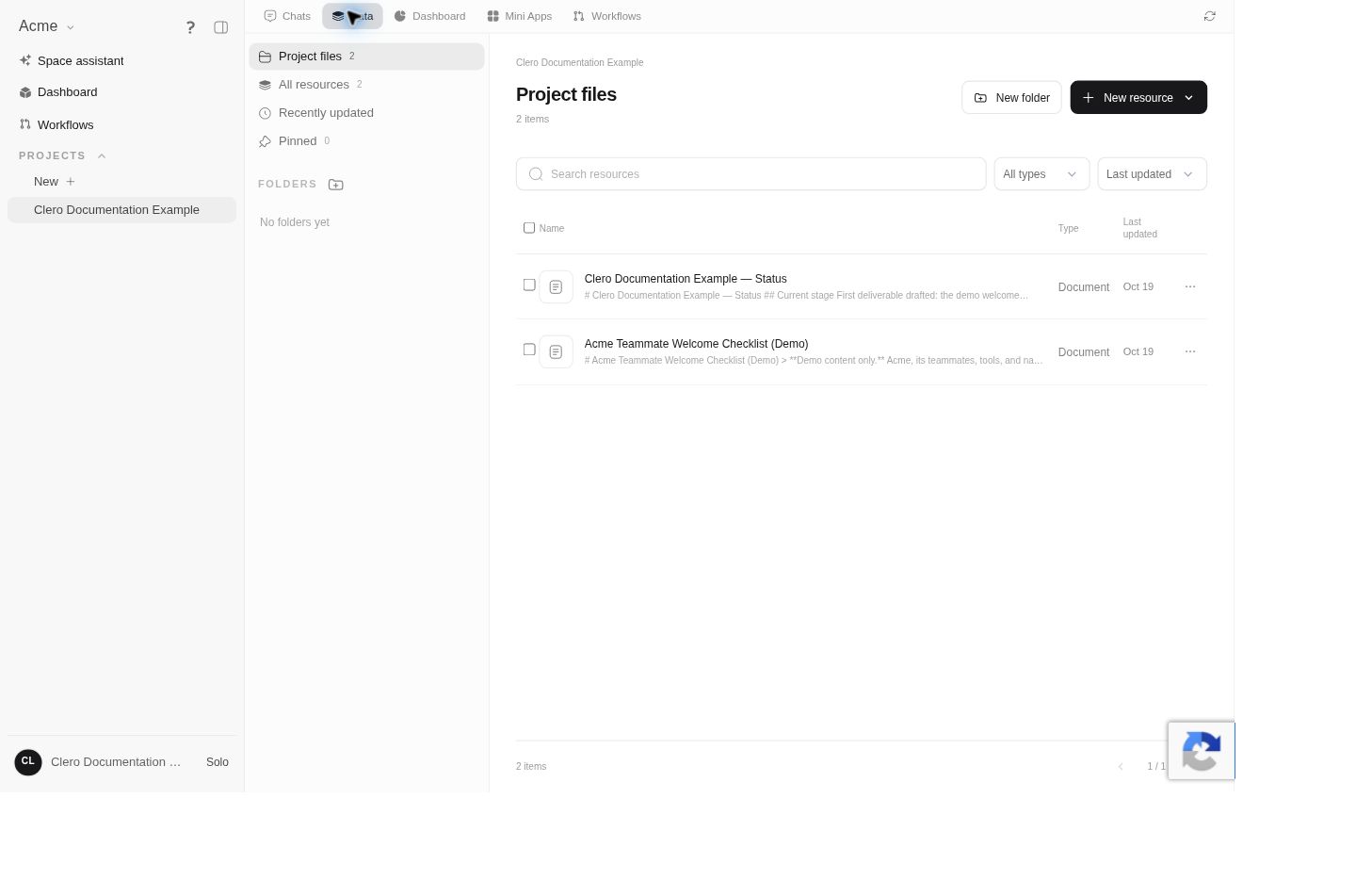 Screenshot detailBoth documents created during the demo appear as project resources.Enlarge ↗
Add material through New resource
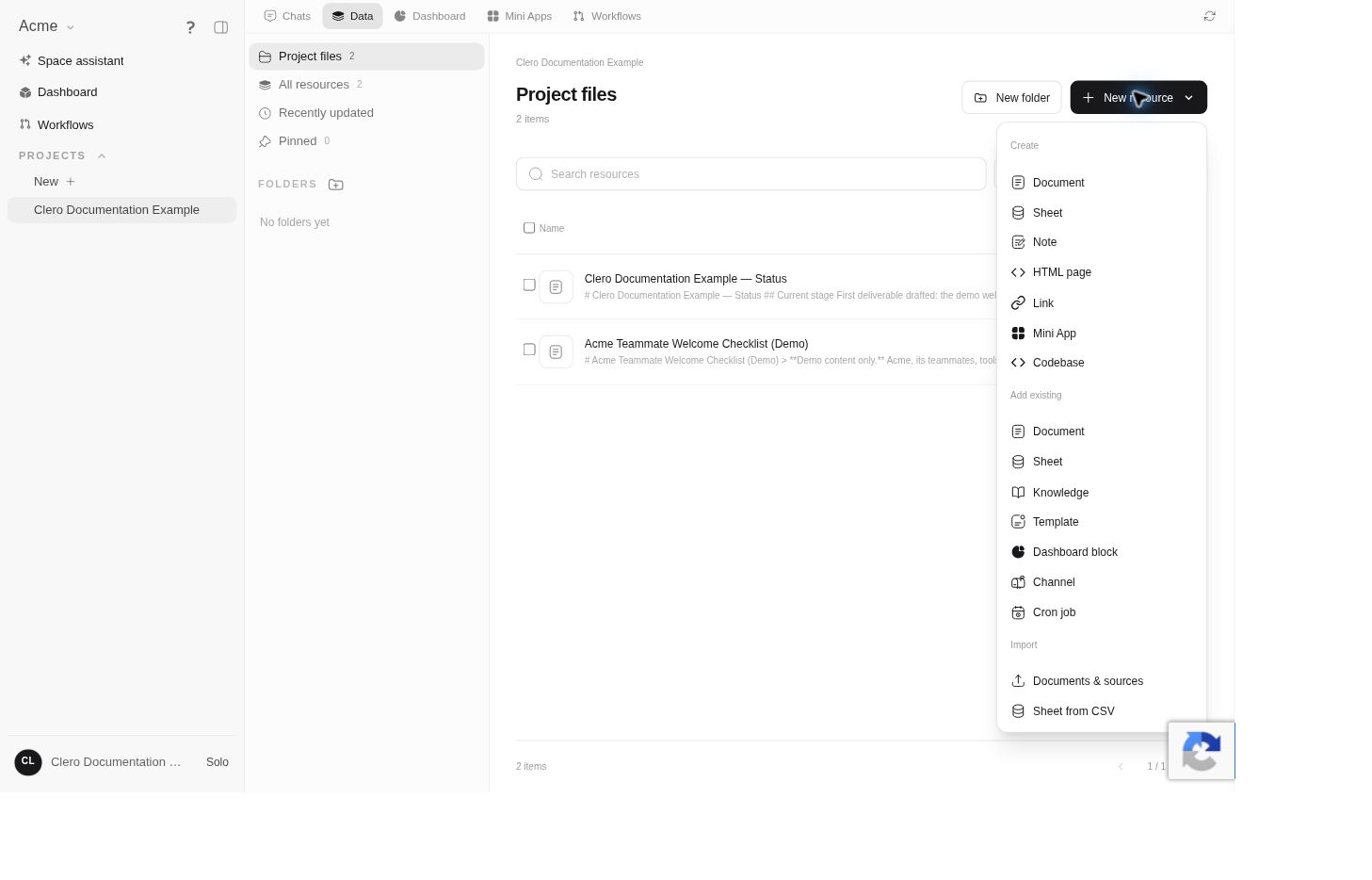
Select New resource. The inspected menu separates three kinds of actions:
- Create: Document, Sheet, Note, HTML page, Link, Mini App, or Codebase.
- Add existing: Document, Sheet, Knowledge, Template, Dashboard block, Channel, or Cron job.
- Import: Documents & sources or Sheet from CSV.
Choose the action for the material you actually have. Creating a new document, linking an existing document, and importing a source are different operations.
Resource types have different jobs
Documents and knowledge hold reference material; sheets hold structured records. A codebase connects software work to a repository or working copy. A channel routes messages to a project agent, while a cron job represents recurring execution. Their presence in Data does not make them interchangeable knowledge sources.
Attach an existing source
Use New resource → Add existing and select the appropriate resource type. Choose the intended item in the picker rather than relying on a similar title. Linking an existing source to the project should not be confused with copying or exporting it.
The detailed source picker and retrieval behavior are source-backed; the first live test verified the menu and generated-document listing.
Tell the team which source matters
When assigning the next task, identify the authoritative material:
Use the current product brief for feature facts and the style guide for tone. Treat older examples as structure references only. Show any conflict before choosing an answer.
For the first task with new material, ask the agent to identify which sources it used. A file appearing in Data does not prove that every future response has read it.
Keep the source set current
Use descriptive names and dates. Update the authoritative material when facts change, then tell the team what changed and which outputs should be reviewed.
Do not assume a source edit rewrites earlier answers or refreshes every running task. Keep accepted decisions and important uncertainties visible in the project.