A project keeps a goal, its agent work, and its resources together. After creation, select the project name under PROJECTS in the workspace sidebar.
Use the project tabs
The created demo project has these tabs:
- Chats: Open the team conversations and inspect their output.
- Data: Find project resources and add material.
- Dashboard: Open the project dashboard surface.
- Mini Apps: Open the project’s Mini Apps surface.
- Workflows: Open the project-specific workflow surface.
The presence of a tab does not mean the project already contains content for it. Start with Chats and Data when following the first-project walkthrough.
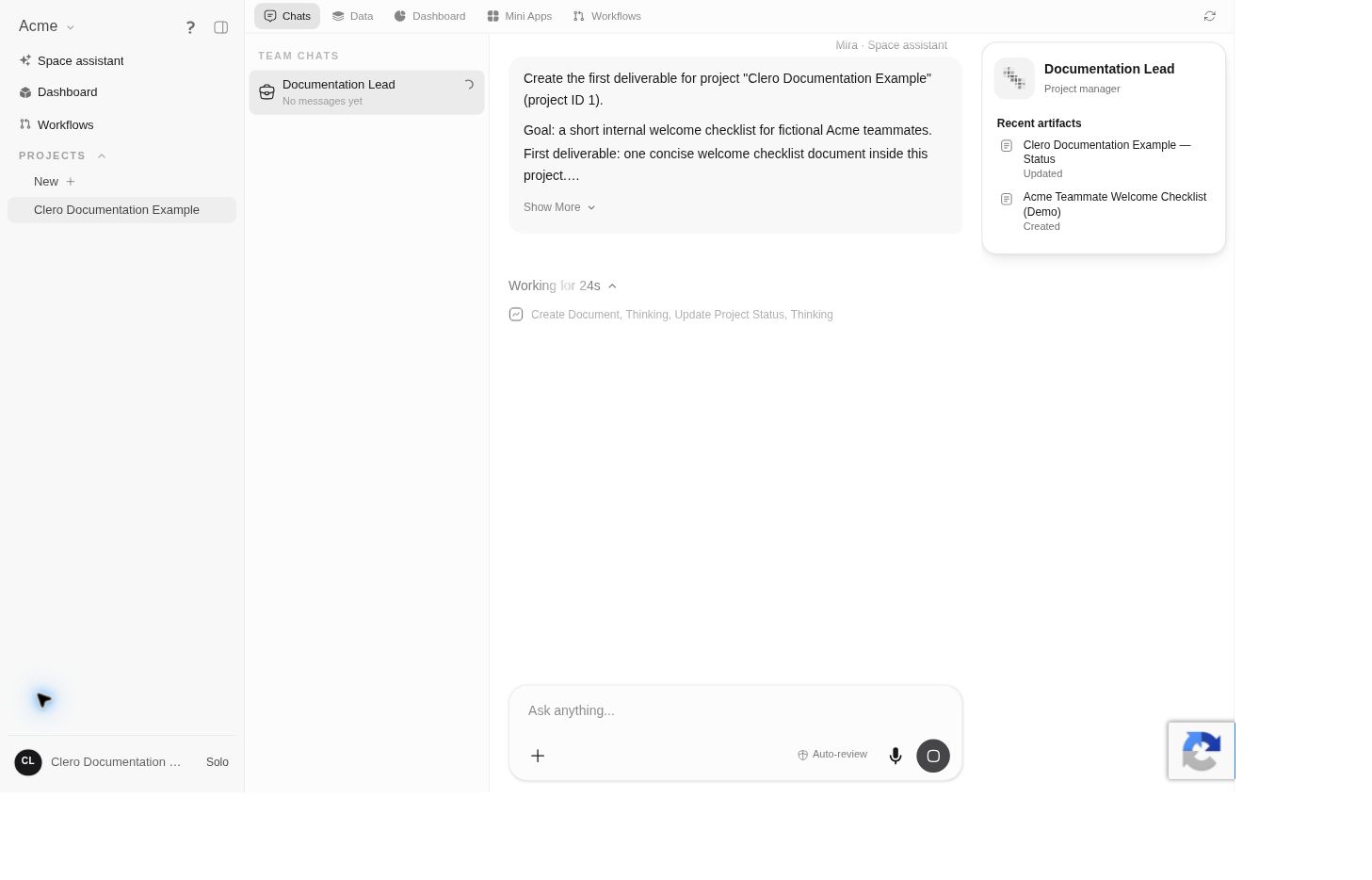 Screenshot detailThe manager is working on the fictional first deliverable in this capture.Enlarge ↗
Continue work with the manager
- Open Chats.
- Select the project manager under TEAM CHATS.
- Read the latest result and any question that needs your answer.
- Give the next task with the desired output and boundaries.
Reference the accepted deliverable when asking for a revision. For example: “Keep this checklist’s structure, but add a brief note explaining where a new teammate should ask for help.”
Find project material
- Open Data.
- Use Project files or All resources to find material.
- Search by name, select a resource type, or change the sort order.
- Open the item you need.
The first demo’s generated status note and welcome document both appeared here. See Project knowledge for adding material and Files and outputs for organizing it.
Keep project intent clear
A project can contain several tasks. Before starting a new one, identify the deliverable, source material, and review point. If a new request changes the original goal, explain the change so the manager can distinguish it from the earlier plan.
When expected work is missing
Check the selected project and conversation first. Then look in Data for the resource. A missing chat link does not establish that the underlying document is gone. If access is denied, check Roles and access rather than creating a duplicate project.