Ask the agent for the app your task needs. It can place a connection card in the conversation, including for a custom MCP server. Select Connect on the card to open the setup flow, choose the intended account, and review the requested access yourself.
You do not need to start in Settings. The Marketplace remains useful for browsing integrations and checking existing connections.
Who can start a connection request
The inspected source restricts cards to the authorized requester of a user-assigned task, with accepted organization admin or champion membership and integration-management permission. The agent also needs its connection-request capability. If you cannot obtain a card, ask an authorized organization administrator to help; do not assume that every Member or agent can create connection requests.
Ask for a connection card
Name the app, the task, and any limit on what should happen next:
I want to use Google Drive for this project. Show me its connection card and explain the access needed. Wait for me to connect; do not create, edit, or share files yet.
Or ask as part of a real task:
Help me check calendar availability. If the necessary app is not connected, show its connection card first. Do not create events or send invitations.
An agent with the connection-request capability can identify the appropriate integration and show its card. If it cannot find the service, give its exact name. For a server outside the catalog, use Connect a custom MCP server.
Connect, authorize, then return to the task
- Check that the card names the app you intended to use.
- Select Connect.
- Follow the setup flow shown for that service. Choose the intended work or personal account and read the requested permissions.
- Complete authorization only if the account and access match your task. Enter credentials only in the provider or dedicated setup form, never in the conversation.
- Return to Clero. The connection request checks its completion state; a card being displayed is not proof that access was granted.
- Check the returned card status. The agent can continue after all connection requests attached to that response are resolved and any accompanying questions are answered.
If you want an explicit capability check before the task continues, a useful follow-up is:
Check whether that connection completed and whether you can perform the operation we discussed. Use only a small read-only check if available. Do not send, publish, edit, or create anything yet.
The current implementation verifies the saved connection on the server before treating the request as complete. The card can show Ready to connect, Waiting for connection, or Connected. A failed request offers Try again and reports that the agent was notified. A successful sign-in or a closed authorization window alone is not enough. To decline an unnecessary request, select Cancel on the card rather than only closing its setup window.
A connection and tool access are separate
A connected account supplies service access. The agent must also have the relevant tool capabilities, and some services need a particular source attached to the current space. If the account is connected but the task still fails, ask the agent which layer is missing.
Connecting a service does not automatically authorize every operation or every agent. Loading an already allowed tool group makes its tools available to the agent; it does not create an account connection or expand permissions. See Give an agent the right capabilities.
Use the Marketplace when you want to browse
- Open Settings → Connect Apps.
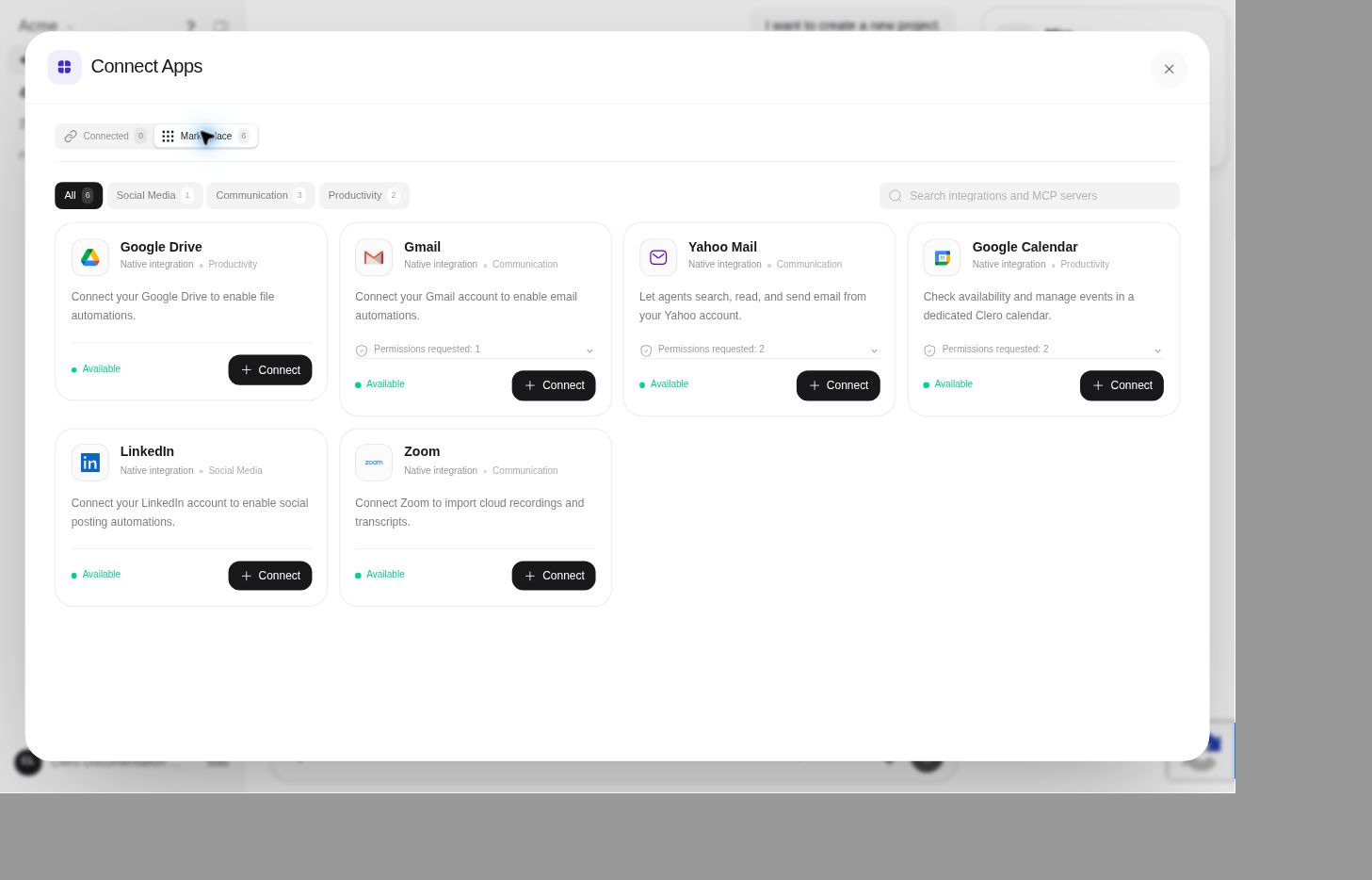
- Select Marketplace to browse or search integrations and MCP servers.
- Use Connected to inspect accounts already linked in the current context.
The inspected catalog included Google Drive, Gmail, Yahoo Mail, Google Calendar, LinkedIn, and Zoom. Catalog presence is separate from successful authorization, provider availability, and the operations an integration supports.
Check the provider’s actual scope
- Gmail: The published scope covers sending and excludes inbox-content reading through this connection.
- Yahoo Mail: Review the consent disclosure and confirm availability for your account; a catalog entry does not establish general production access.
- Google Drive and Calendar: Check selected-file and calendar scope rather than assuming unrestricted account access.
- LinkedIn: Check the identity, destination, and exact supported operation before acting externally.
- Custom MCP servers: Review the server owner, endpoint, authentication, and exposed capabilities before connecting.
Clero sign-in with an identity does not automatically connect every app associated with that identity.
If the card or connection does not work
If the agent cannot show a card, ask whether its connection-request tool is available. Check both the requester’s organization role and the agent’s capability grant. Do not interpret that as proof that cards are unsupported.
Tell the agent the exact app, intended account, required operation, and visible error. Ask it to distinguish a missing connection from an expired authorization, missing tool access, or missing source scope.
If authorization was interrupted or failed, finish or repeat the supported setup flow only after checking the account and error. Do not paste tokens into chat or grant broader access just to make an error disappear. If an action may already have succeeded, inspect its result before retrying it.
Use Connection troubleshooting for the diagnostic checklist. Disconnecting access and deleting previously saved project information are different operations; consult the current Privacy Policy for provider-specific details.
Verification note
The Marketplace was inspected live. The agent-card flow and completion handling are source-backed; the isolated Member demo could not render a card under the required requester-role and agent-capability prerequisites. No new permission was granted, provider authorization completed, or external operation tested in that pass.