Project Flow connects objective changes to the project manager. You choose which events should prompt the manager to review the project and decide what to do next. This is different from running a task on a clock schedule.
Use Project Flow when the event is “work became Ready” or “an objective became Blocked.” Use heartbeats for an idle or scheduled manager check, and scheduled tasks or recurring schedules for a specific action at a future time.
Open Project flow
- Open the intended project.
- Select Dashboard → Objectives.
- Select Project flow.
- Check the assigned Project manager, its availability, and Last run.
- Review Objective handoff on the left and Automation → Run conditions on the right.
The live Member account could inspect these controls. No setting was changed and Run check was not pressed during the documentation pass.
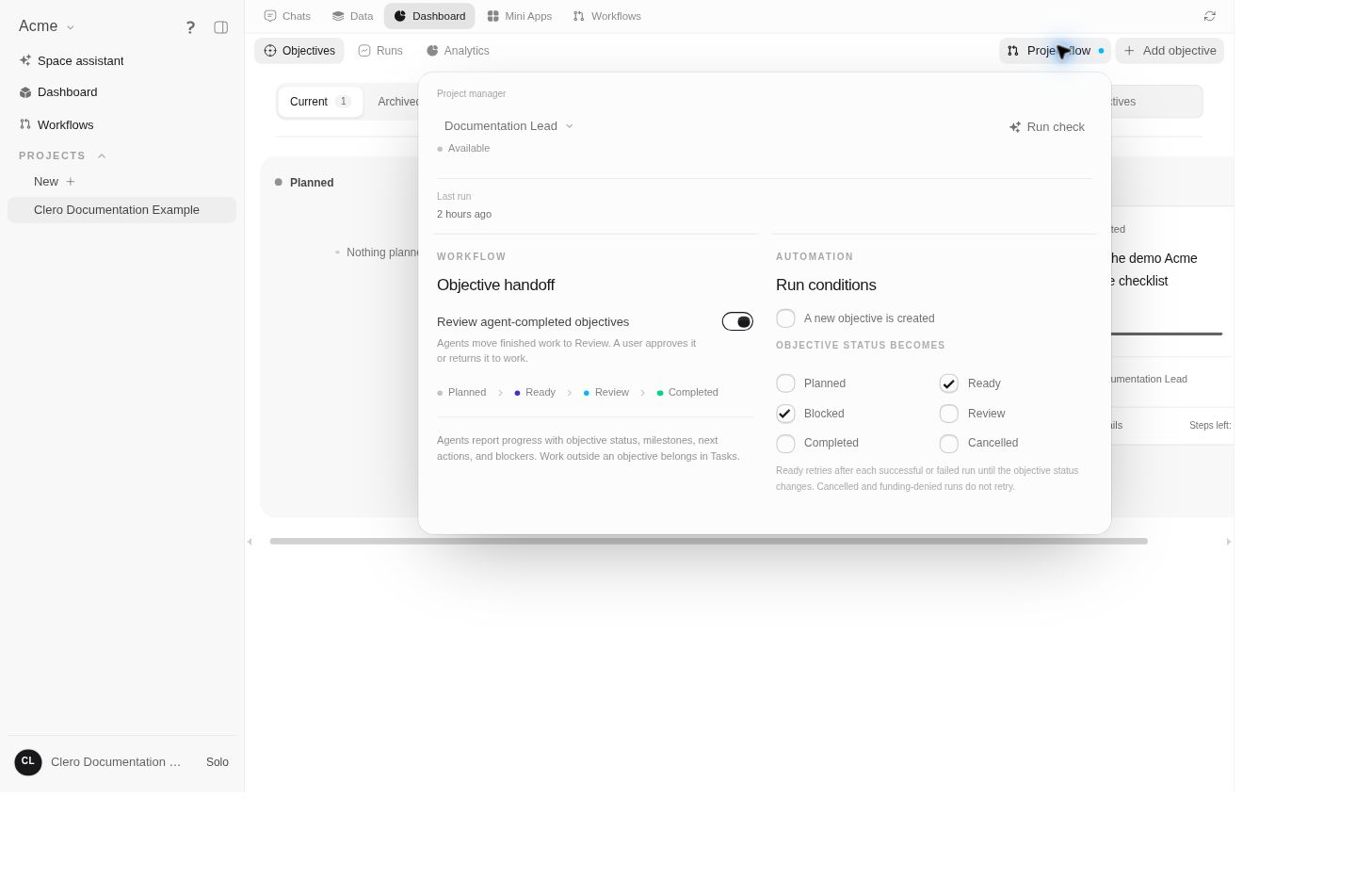
Choose which objective events should wake the manager
Under Run conditions, the current controls are:
- A new objective is created.
- Objective status becomes: Planned, Ready, Blocked, Review, Completed, or Cancelled.
Changes save immediately. There is no separate Save step for these controls. Check the project and intended behavior before changing a checkbox. Selecting a checkbox does not itself run objectives already in that status. Use Run check when existing work needs the manager’s attention now.
A checked status is an event condition, not a rule that the manager continuously polls every objective in that state. On an update, moving an objective to a selected status can queue a manager check. An ordinary description-only edit without a status update does not have the same effect. Explicitly submitting Ready again is a source-backed exception that can qualify.
The source defaults are Ready and Blocked, which matched the inspected project. Choose the statuses that fit your handoff rather than treating the defaults as mandatory.
Understand creation and status together
Creation uses either matching condition:
- The new objective checkbox is on; or
- The new objective's initial status is checked.
For example, with Ready and Blocked selected and the creation checkbox off:
| Action | Matching Project Flow event |
|---|---|
| Create a Planned objective | No selected creation/status condition |
| Create a Ready objective | Ready matches, so a manager check can queue |
| Move Planned to Ready | Ready matches, so a manager check can queue |
| Move Ready to Blocked | Blocked matches, so a manager check can queue |
Unchecking “A new objective is created” therefore does not suppress a new Ready objective when Ready remains selected.
Keep the review handoff separate
Review agent-completed objectives controls whether agent-finished objectives go through a user-review handoff. With it enabled, agents move finished work to Review; a user approves the result or returns it to work. See Review and complete an objective.
This review policy is separate from the Review status checkbox. The toggle controls the completion handoff; the checkbox controls whether entering Review is a matching event for another manager check. Neither substitutes for inspecting the deliverable.
With user review enabled, the flow graphic shows Planned → Ready → Review → Completed. Turning user review off removes Review from this graphic. Blocked and Cancelled also exist even though they are not part of that simple main-line graphic.
Know the automatic exceptions and limits
Resolving the last open blocker on a Blocked objective moves it to Ready and can wake the manager even when all status boxes are cleared. It is a specific blocker-resolution path, not a selected-status condition.
Objective-driven checks require an active project, an assigned manager, and available funding. The scheduler can group events and queue them behind existing work; do not expect each checkbox match to produce an immediate, separate run. Updates originating in the manager's own ongoing conversation are filtered to avoid self-trigger loops.
If the manager is waiting for a required action, resolve that state rather than repeatedly changing objective status to try to force progress.
Read the Ready retry note carefully
The inspected UI says Ready work retries after successful or failed runs, excluding cancelled and funding-denied runs. However, the inspected implementation and tests currently allow at most one follow-up from a qualifying original objective-event run; they do not recursively retry retry-runs. The objective must still be Ready and unchanged, with no open blocker or active delegated task, and Ready must remain selected.
This is an unresolved difference between the visible help text and the inspected source. Automatic retries were not live-tested, and source-to-deployment parity is not established. Do not rely on an indefinite retry loop. Check the actual objective state and Dashboard → Runs when work remains Ready.
An objective’s due date marks when its outcome is due; it does not create a timed manager run. Use Heartbeats for a manager check later, or a scheduled task for a specific future action.
Request one manager check now
Run check requests a manual project-manager check, independently of the Run conditions boxes. It is an execution action, not a read-only status refresh.
The source requires project write access, an assigned manager, and funding. If the manager is already working, the request can queue behind it; an existing queued manual request can be reused rather than creating another. A queued acknowledgment is not proof that the check finished.
Use it when you intentionally want the manager to reassess the project now. For a later or daily review, use Heartbeats.
Change the policy without assuming everything stops
Clearing checkboxes changes future matching objective events and Ready retry eligibility. It does not cancel an active run, remove messages already queued, disable the last-blocker-resolution path, or turn off separate heartbeats, cron schedules, triggers, or scheduled tasks.
There is no global “all automation off” switch in this Project Flow panel. If you need work to stop, identify the relevant mechanism and current execution separately. Stopping a run never reverses actions it already completed.
Two useful project patterns
Work starts when it is ready
Keep draft ideas Planned. Select Ready as a run condition, and move an objective to Ready when its brief and sources are usable. Keep Review agent-completed objectives enabled when you want to inspect the result before completion.
The manager helps with blockers
Select Blocked so a new blocker state can prompt a manager check. Record the actual missing decision, source, or access instead of only changing a label. When the final blocker is resolved, the special Ready handoff can wake the manager to continue.
These are example configurations. Their saving and execution were not exercised in this read-only pass. Confirm actual runs and outputs before making the pattern operationally important.