A project objective records the intended outcome and its current state. Objective changes can also prompt the project manager through Project Flow. The live demo included an objective for a manager-created welcome checklist and verified its Review-to-Completed approval.
Open the objectives view
- Select the project.
- Open Dashboard.
- Choose Objectives.
- Use Current or Archived, and Board or List, to inspect the work.
- Open the objective you want to review.
The project Dashboard also shows Runs and Analytics tabs. Objective status and run activity are different views of the work.
Choose how objectives move work forward
Open Dashboard → Objectives → Project flow to inspect Run conditions and Objective handoff. You can select new-objective creation and individual target statuses as reasons for a manager check. The observed project had Ready and Blocked selected.
These conditions save when changed. Creation and checked initial status are alternative matches; a newly created Ready objective can wake the manager even with the creation checkbox off. Resolving the last blocker has a separate Ready handoff, so clearing the boxes is not a global automation-off switch.
Review agent-completed objectives is a separate completion policy. When enabled, agent-finished work goes to Review for a user to approve or return. The Review run-condition checkbox does something different: it selects Review as a reason to queue a manager check.
Read Control when the project manager runs before changing these settings. It explains queued checks, the Ready retry caveat, manual Run check, and what disabling conditions does not stop.
Inspect the review state
The tested objective was in Review. Its detail view showed the owner, priority, due-date field, milestones, next actions, blockers, progress, and linked artifacts.
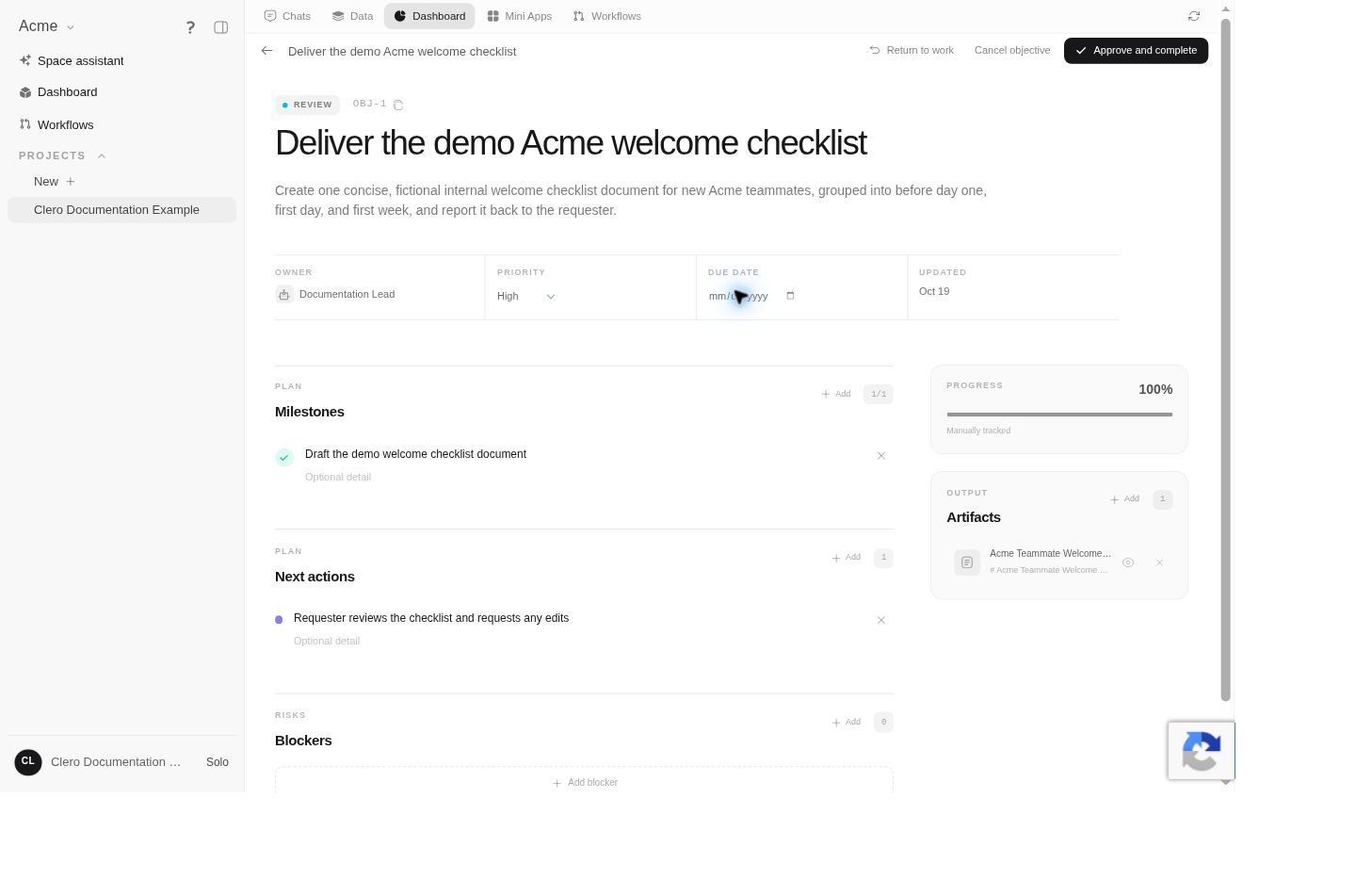
Open the linked artifact and check it against the objective description. A progress value by itself does not establish that the result meets the requirements.
Approve completed work
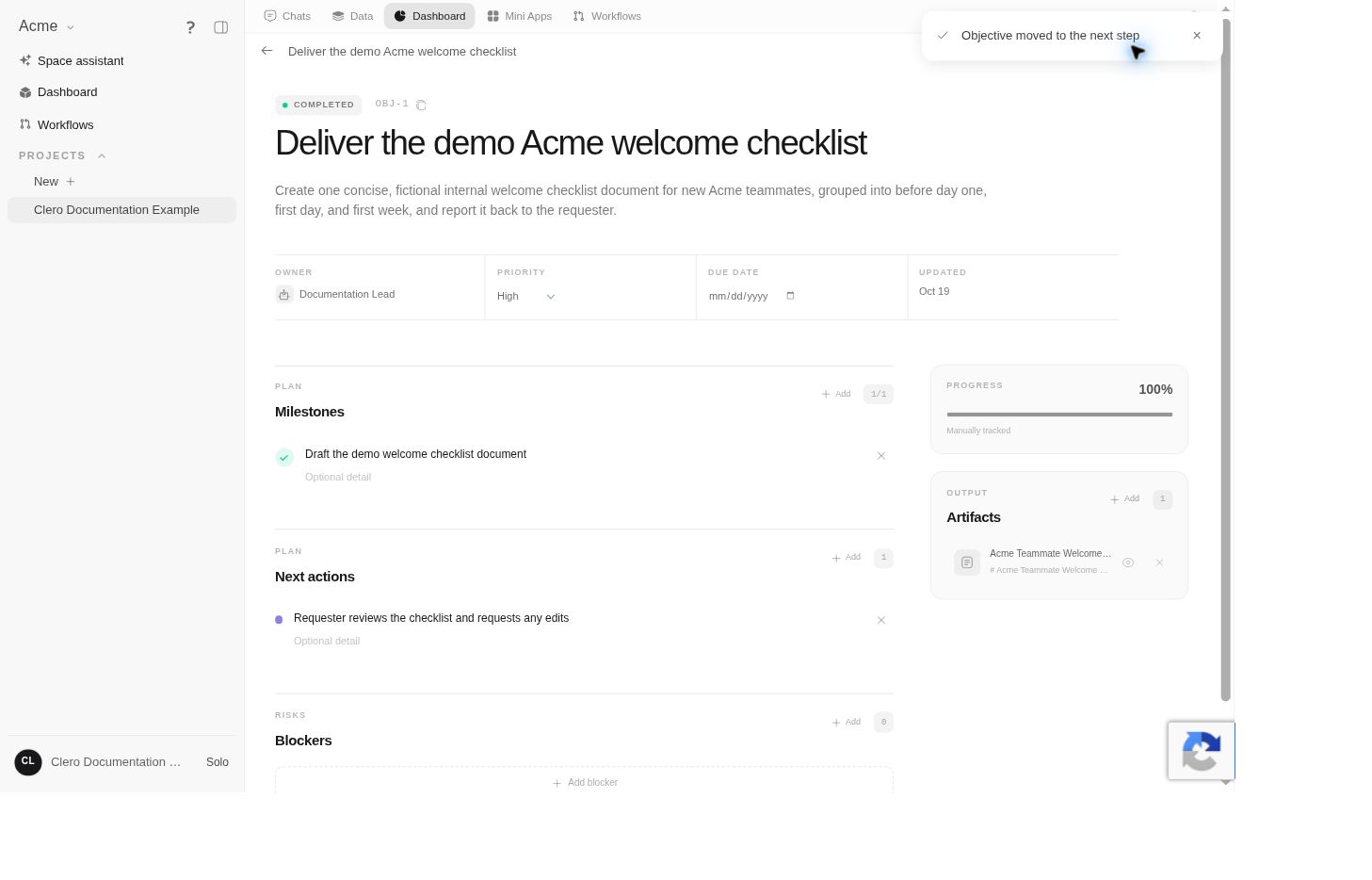
If the result is acceptable, select Approve and complete. In the demo, the objective changed from REVIEW to COMPLETED, and the interface confirmed the transition.
If the result needs more work
The Review page also exposes Return to work and Cancel objective. Choose an action only after deciding what should happen to the work. The return and cancellation transitions were not exercised in the live test.
Describe the remaining gap and refer to the artifact when asking for a revision. Keep the objective description, accepted result, and next action consistent so another person can understand the status.
Keep completion specific
Completing an objective marks that outcome’s state. It does not prove a message was sent, a document was shared, or a separate project is finished. Verify those actions in their own destination or view.
Distinguish tracking from execution
A due date records a target date; it does not create an exact-time scheduled task. Qualifying objective events can separately queue the manager through Project Flow, while heartbeats let the manager check progress after inactivity or on a one-time/daily cadence. Use a scheduled task when a concrete action must run later.
An objective status and a written status note are separate records. In the demo, the objective was Completed while an earlier status narrative still referred to pending review. Check the current objective and linked artifact, then ask the manager to reconcile an outdated summary rather than treating either label as proof of every other state.