Permissions are specific to the operation. Being able to chat, create a project through the assistant, or review an objective does not mean you can edit agent configuration or billing.
A verified Member boundary
In the live demo, a Member could complete the assistant-led project walkthrough and review its output. Opening Agent settings directly showed No Access, with a notice limiting automation management to organization admins and champions.
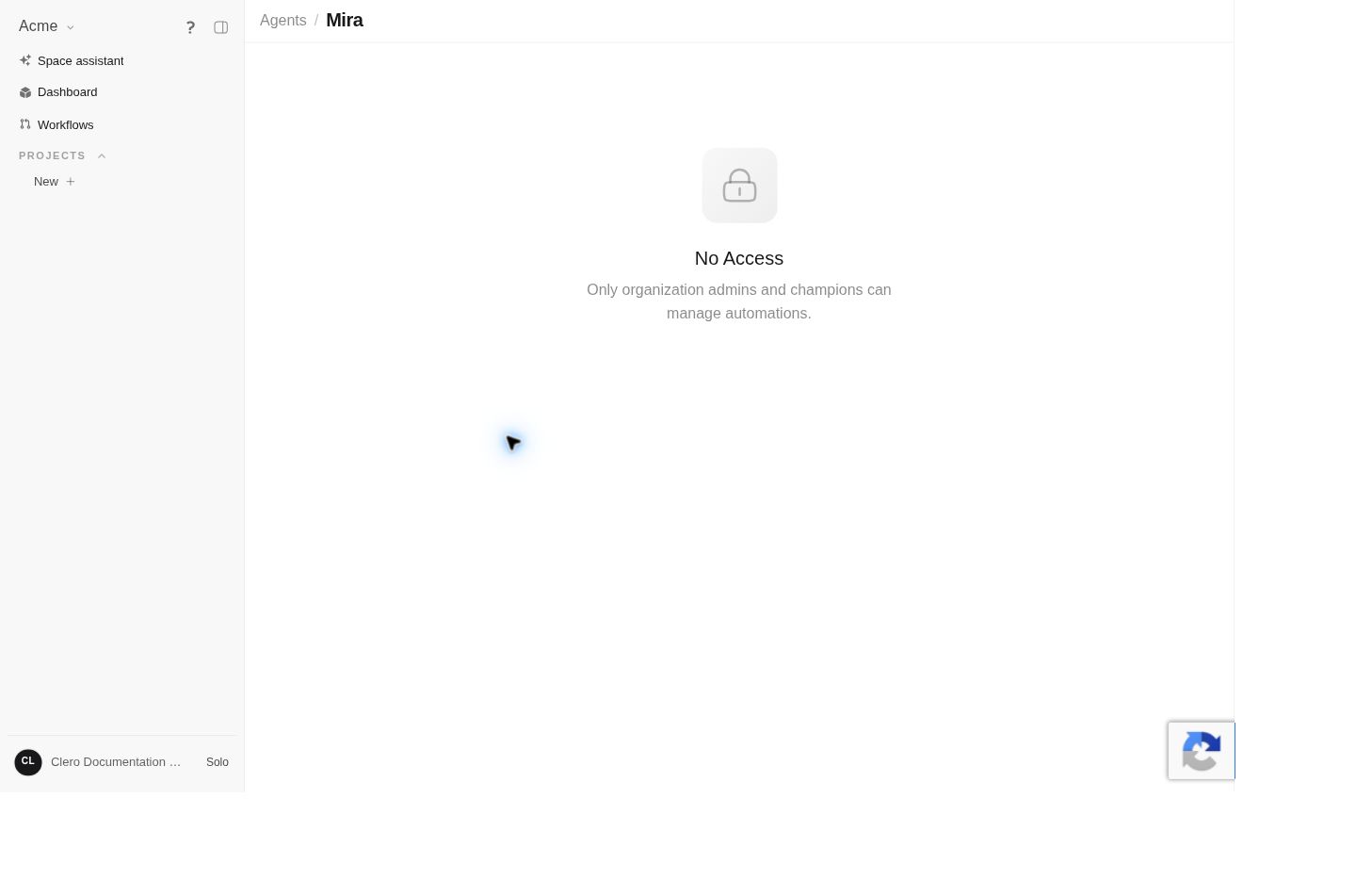 Screenshot detailObserved role restriction. No access level was changed to bypass it.Enlarge ↗
A project-level agent dialog also exposed configuration tabs while its content said the agent was unavailable. Visible tabs are not proof of permission to save their settings.
The Member account also opened Dashboard → Objectives → Project flow and both Workflows → Heartbeats → Schedule check forms. These read-only inspections do not establish that every Member can save every configuration. See Project flow and Heartbeats for the exact controls and untested boundaries.
Current source permission distinctions
The inspected source describes the following broad boundaries:
| Operation | Source permission boundary |
|---|---|
| Manage an organization-scoped agent | Admin or Champion |
| Manage a personal agent | Owner, or creator when ownership is not set |
| Manage a team-scoped agent | Admin, Champion, or a member of its audience team |
| Manage a space-bound agent | Write access to that space |
| Manage members and invitations | Admin or Champion, with additional invitation conditions |
| Organization settings and billing | Champion in the profile permission model |
| Manage a subscription | May also depend on a designated subscription manager or explicit permission |
| Write in a space or project | Depends on that resource’s access rules |
Agent audience scope and the route used to manage it matter. The live denial above describes that specific administration page; it does not establish that every agent-related action is admin-only. The current backend has the more specific entity-level rules shown here.
Likewise, an admin-only automation editor is separate from an agent creating an allowed trigger or schedule on a user’s behalf. Backend tests cover Members creating their own automation records. Tool access, current project membership, record ownership, and the exact operation still apply. See Schedules.
This is a source-backed explanation, not a complete deployed authorization matrix. Do not infer permission from a role label or a visible button alone.
When you see No Access
- Check that you are signed in to the intended account and space.
- Record the exact page and notice.
- Ask the appropriate organization owner for the specific access needed.
- Continue work that does not require that permission.
Avoid asking for broad administrator access when a narrower resource permission would meet the need. Do not create duplicate agents or change accounts to work around a denied action.
Human teams and agent teams
Organization member roles govern people’s access. A project’s agent team governs which AI agents do the work. Adding an agent to a project does not grant a person a new organization role.
See Members and invitations for the source-backed human-membership workflow, or Agents and teams for project staffing.